 PixOrg
How to move photos out of the Camera folder into folders on Android
Turn one Camera pile of thousands of photos into folders by trip and occasion, without losing a single original along the way.
Every photo you take lands in the same place: a folder called Camera, inside DCIM. After a few years it holds eleven thousand photos in one long scroll, and the trip to Hampi sits somewhere between a parking ticket and a screenshot of a recipe. Albums in a gallery app can tidy the view, but they are a label in that one app. The folder is what every app, your PC and your next phone will see.
So the job is real: get the trip out of Camera and into a folder called Hampi 2024, and do it for the other trips too, without spending a weekend on it.
Moving photos with the Files app
Android’s own Files app (or Samsung’s My Files) can move files between folders.
- Open Files and go to Internal storage, then DCIM, then Camera.
- Long-press a photo, then tap the others you want. The list shows file names and tiny thumbnails, so picking the right eighty photos out of eleven thousand is slow.
- Tap the menu, then Move to, and pick or create a folder.
It works, and nothing extra is installed. The trouble is step 2. File managers sort by name or date and show one or two photos per row, so you cannot see a trip as a trip. People usually move one album and give up.
Gallery apps are the other way round: they show the photos well but mostly make albums, not folders. Google Photos has no “move to folder” at all for photos on the phone. Some phone galleries (Samsung, Xiaomi) can move to an album that is also a folder; check whether the result shows up in Files before relying on it.
In PixOrg
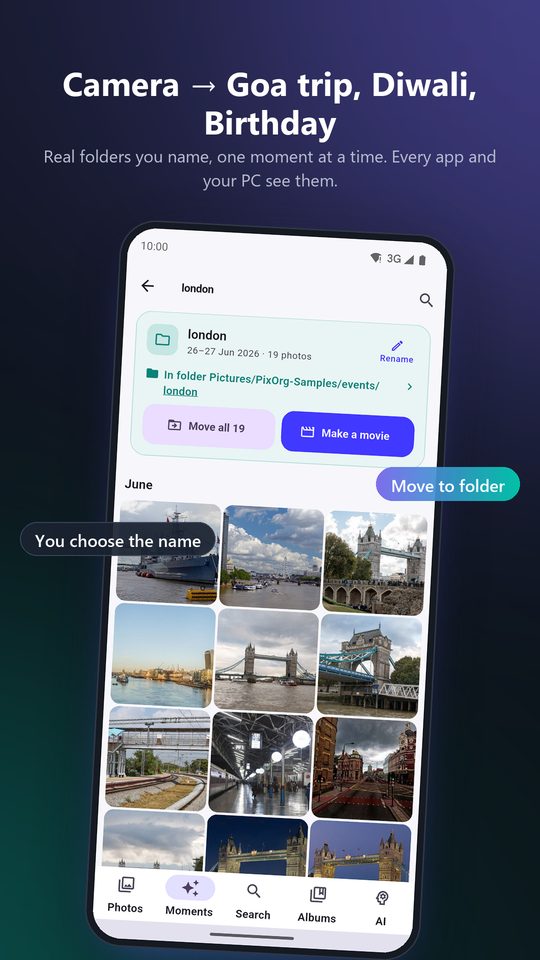
PixOrg groups your photos into Moments by time and place, and a moment can be moved into a folder in one go, so the trip is already selected for you.
- Open PixOrg and tap Moments. Find the trip or the day, for example “Day out in Hampi” or “Diwali”.
- Open the moment and tap Move. Choose Move all N photos to take the whole moment, or long-press photos first and choose Move N selected.
- Pick a folder, or tap New folder and type a name. New folders go under DCIM or Pictures, where every gallery and PC looks.
- Android asks once for permission to modify the photos. Allow it. The move runs in the background and PixOrg shows a progress card; you can keep using the app.
What happens behind the move:
- On Android 11 and later the photo is renamed into the new folder, which takes a moment per photo and copies nothing. On older phones PixOrg copies the file, checks the copy, and only then deletes the original. An original is never deleted before a verified copy exists.
- If the phone restarts or the app is closed halfway, a card offers to finish the move when you come back.
- The folder you made stays one moment in PixOrg, even if the photos span weeks, so “Hampi 2024” reads as a trip and not as four separate days.
- The folder is a real folder. Open Files, or plug the phone into a PC, and it is there with the photos in it. Delete PixOrg tomorrow and nothing is lost.
You can also rename a folder from Albums (Rename folder), and copy photos to a second folder instead of moving them (Copy). PixOrg will not rename the Camera folder itself or other folders Android depends on, so the camera app keeps working.
A way to work through a big Camera folder
Do not try to sort eleven thousand photos in one sitting. Open Moments, scroll to a trip you recognise, move it, and stop. Next week do another. Each move takes about a minute of your attention, and after a few weekends the Camera folder holds only the everyday photos nobody needs to file.
Two things make the pile smaller before you start. Run Declutter to clear forwards, old screenshots and duplicates, and use the Duplicates tab so you do not move the same photo into two folders.
Privacy
Sorting photos needs no network, and PixOrg has none. The moments that make a trip easy to pick are worked out on the phone from the time, the place in the photo’s own data and what the photos show. The folder move is an ordinary file operation; no copy of a photo is made anywhere but on your phone.
PixOrg is free on Google Play
An AI photo gallery for Android that searches, sorts and protects your photos on the phone itself. No account, no cloud, works offline. Free with small ads; PixOrg Pro removes them.
Related guides
- How to clean up the photos on your Android phone
Clear the forwards, dead screenshots, bursts and blurry shots that fill a phone, one reviewed group at a time, with nothing deleted behind your back.
- How to make a video from photos with music on Android
Turn a trip or a birthday into a short vertical movie with a song from your own phone, saved to your gallery, in a couple of minutes and for free.
- How to find and delete duplicate photos on Android
Find the copies that sharing, downloading and backups leave behind, keep the best one of each, and get the space back without a cloud service.