 PixOrg
How to clean up the photos on your Android phone
Clear the forwards, dead screenshots, bursts and blurry shots that fill a phone, one reviewed group at a time, with nothing deleted behind your back.
Most of what fills a phone’s gallery was never meant to be kept. The good-morning forward from a group, the screenshot of a ticket that was used in March, the six shots of the same plate of food, the one that came out dark. They are not duplicates, so a duplicate finder leaves them, and they are too many to delete by hand.
The useful question is not “which photos can go” but “which groups of photos can I decide about in one look”. A cleanup that shows you forty expired screenshots together takes a minute. The same forty spread through three years of photos takes an afternoon nobody has.
Cleaning up with what the phone has
- Files by Google suggests large files, old screenshots and memes under its Clean tab. It works on file size and age and does not look at the picture, so a blurry shot or a burst is not found.
- Google Photos offers “Free up space”, which deletes photos that are already backed up. That empties the phone rather than the collection: the forwards are still in your library, just in the cloud.
- Phone galleries sometimes group screenshots and have a “Suggested for cleanup” page (Samsung, Xiaomi). Check what they consider clutter; some count every photo in a chat folder.
Each of these is worth a few minutes. None of them looks at the photo to decide what it is.
In PixOrg
Declutter looks at the pictures, groups what it finds by reason, and ticks nothing except exact duplicates. You review, then delete.
- Open PixOrg, tap AI, then Declutter.
- The page lists groups, biggest first by the space they take:
- Forwards: pictures that arrived through chat apps and were never taken by you (memes, greetings, posters).
- Expired screenshots: screenshots old enough that a ticket, a code or a chat has done its job.
- Duplicates: exact copies, the one to keep marked. These are the only photos ticked for you.
- Similar shots: bursts of the same scene. Each row shows the sharpest with a Keep badge and the rest as copies you can tick.
- Blurry or dark: shots the camera missed.
- Old chat media and Large videos: the storage groups, covered in a guide of their own.
- Open a group. Tick what should go, tap a thumbnail to see it full size, untick anything you want to keep.
- Tap Clean up. Deleted photos go to Android’s Bin for 30 days (Android 11 and later).
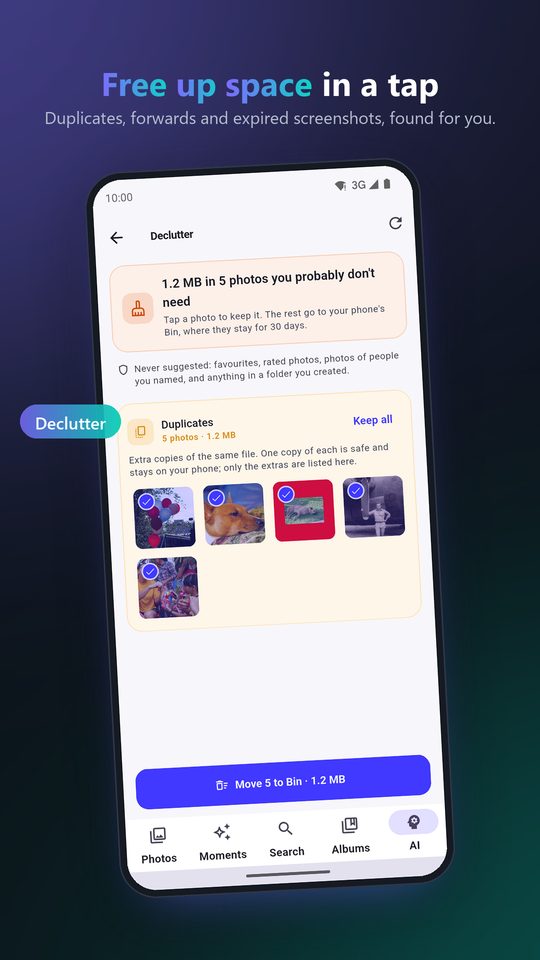
Some things PixOrg never suggests, whatever they look like: a photo you rated or made a favourite, a photo of someone you have named in People, and anything in a folder you made yourself. A dark photo of your grandmother is a keepsake, not clutter, and the app assumes so.
Every clean-up is written to a review log with Undo, so a group deleted by mistake comes back from the Bin in one tap while the Bin still holds it.
When to run it
Declutter checks the library after PixOrg has read new photos, and again when the last check is a few hours old. The AI tab shows the total it has found (“1.2 GB to review”) so you can see at a glance whether a session is worth it. Once a month is plenty for most phones; after a wedding or a trip, the bursts alone are worth a look.
Exact copies are a job of their own. The Duplicates tab finds near copies too, including the compressed ones chat apps make, and is where to go when a photo seems to be everywhere.
Privacy
Deciding that a photo is a meme, a burst or a blur means looking at it, and PixOrg does that on the phone with the models it already uses for search. Nothing is uploaded to decide, and nothing is deleted until you tap. The free version shows a small ad while a check runs; the ad network never sees a photo.
PixOrg is free on Google Play
An AI photo gallery for Android that searches, sorts and protects your photos on the phone itself. No account, no cloud, works offline. Free with small ads; PixOrg Pro removes them.
Related guides
- How to find and delete duplicate photos on Android
Find the copies that sharing, downloading and backups leave behind, keep the best one of each, and get the space back without a cloud service.
- How to delete old WhatsApp photos and videos on Android
Find the gigabytes of old chat photos and big videos that fill a phone, see them by size, and clear them with nothing deleted that you did not tick.
- How to move photos out of the Camera folder into folders on Android
Turn one Camera pile of thousands of photos into folders by trip and occasion, without losing a single original along the way.