 PixOrg
How to find and delete duplicate photos on Android
Find the copies that sharing, downloading and backups leave behind, keep the best one of each, and get the space back without a cloud service.
A photo gets shared in a family group, saved from the group, sent back edited, downloaded again from a chat on another day. Each step leaves a copy in a different folder with a different file name. After a few years a phone can hold hundreds of them, each the full size of the original.
They are hard to see because galleries sort by time, and the copies have the time they were saved, not the time they were taken. The same photo sits in March, in June and in Downloads, and you never see two of them next to each other.
What Android gives you
- Files by Google has a Clean tab that suggests “Duplicate files”. It compares files by their bytes, so it finds exact copies: the same file saved twice. A copy that a chat app compressed, or that was saved with a different quality, is a different file to it and is not found.
- Google Photos does not look for duplicates on the phone. It skips exact duplicates when backing up, which is a different thing: both copies stay on the phone.
- Phone galleries sometimes have a cleaner (Samsung’s Gallery has “Duplicates” under the storage tools on recent phones). They vary; most compare bytes as Files does.
- Duplicate cleaner apps from the store find near copies too, but many upload thumbnails to do it, and most are paid or heavy with ads.
If your copies are byte-for-byte identical, Files is enough. The copies that survive it are the ones that went through a chat app.
In PixOrg
PixOrg compares the photos themselves, not their file names or sizes, so a compressed copy from a chat and the original are recognised as the same picture.
- Open PixOrg, tap AI, then Declutter, then the Duplicates tab.
- The page shows one row per group of copies. The first photo in each row has a Keep badge; the rest
are the copies. Groups are of two kinds:
- Identical: the same pixels and the same size. These are ticked for you.
- Near copies: the same picture at another size or quality, or a slightly different crop. These are left unticked, so you decide.
- Tap any photo to look at it full size. Untick anything you want to keep.
- Tap Delete. The copies go to Android’s Bin and stay there for 30 days (Android 11 and later), so a mistake can be undone from the Bin.
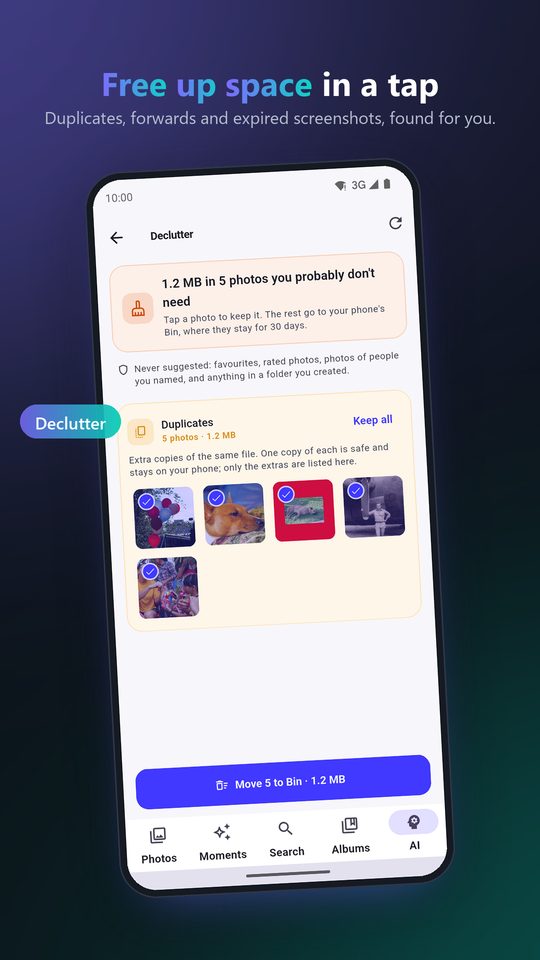
How PixOrg picks the one to keep: a favourite or a rated photo wins, then the one with more pixels, then the larger file, then the oldest. If you would rather keep another, tick the Keep one and untick the copy; whatever is ticked is what goes.
The groups are kept from the last check, so the tab opens at once. Scan again looks through the whole library afresh after you have added or deleted a lot.
What is not a duplicate
Two photos from the same burst look alike but are different pictures, and the Duplicates tab leaves them alone. They turn up instead as Similar shots in Declutter’s first tab, where PixOrg marks the sharpest of the burst as the one to keep. The same goes for the edited copy of a photo: it is a near copy, so it is in a group, but unticked, because you may want both.
Photos in the Vault, and videos, are not compared.
Privacy
Finding a near copy means comparing what two photos look like. PixOrg does that with the same picture model it uses for search, on the phone, with no thumbnail sent anywhere. Deleting goes through Android’s own Bin, so the copies are gone when Android says they are, not before.
PixOrg is free on Google Play
An AI photo gallery for Android that searches, sorts and protects your photos on the phone itself. No account, no cloud, works offline. Free with small ads; PixOrg Pro removes them.
Related guides
- How to clean up the photos on your Android phone
Clear the forwards, dead screenshots, bursts and blurry shots that fill a phone, one reviewed group at a time, with nothing deleted behind your back.
- How to delete old WhatsApp photos and videos on Android
Find the gigabytes of old chat photos and big videos that fill a phone, see them by size, and clear them with nothing deleted that you did not tick.
- How to move photos out of the Camera folder into folders on Android
Turn one Camera pile of thousands of photos into folders by trip and occasion, without losing a single original along the way.