 PixOrg
How to delete old WhatsApp photos and videos on Android
Find the gigabytes of old chat photos and big videos that fill a phone, see them by size, and clear them with nothing deleted that you did not tick.
The phone says storage is almost full. Photos you took yourself are rarely the reason. Chat apps save every picture and video that arrives in a group, and a few busy groups add gigabytes a year: festival greetings, forwarded clips, the same wedding video sent by four relatives.
Clearing it is awkward because the gallery mixes those files in with your own photos by date, and because a chat app’s own storage tool shows one chat at a time.
Using the chat app’s storage tool
WhatsApp has the best built-in answer:
- Open WhatsApp, tap the menu, then Settings, Storage and data, Manage storage.
- The top row shows “Larger than 5 MB” and “Forwarded many times”. Below that, chats sorted by size.
- Open a group, sort by newest or largest, tick what can go, and tap the bin.
Telegram has a similar page under Settings, Data and Storage, Storage Usage, with a slider that removes cached media older than a chosen time without deleting it from the chat.
Both tools work within one app. Photos that were saved to the gallery, moved to another folder or shared on to a second app are not in them, and neither tool shows a chat photo from 2023 next to a video from the same month in a different app.
Android’s own Files app, under Clean, suggests large files and old media by folder. It is worth a look after the chat app’s tool.
In PixOrg
PixOrg’s Declutter has two groups made for this, and they look across every folder on the phone at once, sorted by the space they take.
- Open PixOrg, tap AI, then Declutter. The tile already shows the total it has found to review.
- Scroll to the storage groups:
- Old chat media: photos and videos in chat folders (WhatsApp, Telegram and the like) older than six months. A greeting from two Diwalis ago is here; last week’s is not.
- Large videos: videos of 100 MB and more, wherever they are, biggest first.
- Nothing in these groups is ticked for you. Open a group, tap a video to play it or a photo to see it, and tick what can go. The size of each item is shown, so a few ticks often clear more than an hour of hand-picking.
- Tap Clean up. Everything goes to Android’s Bin and stays there for 30 days (Android 11 and later), so a video you meant to keep can be brought back.
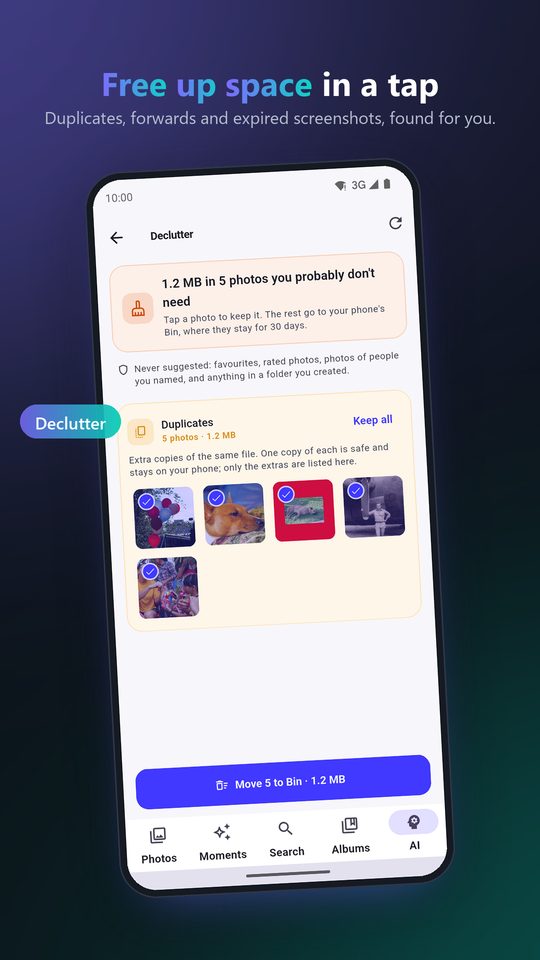
A photo from a chat that you starred, rated or that shows someone you have named in People is never suggested, in these groups or any other; PixOrg assumes you kept it on purpose. The more specific groups come first: a chat photo that is also an exact duplicate is listed under Duplicates, not here, so nothing is counted twice.
The copies that double the cost
Chat media is often on the phone twice: the copy inside the chat app’s folder and the copy you saved to the gallery or a Downloads folder. Each is the full file. The Duplicates tab finds those pairs, including the ones where one copy was compressed on the way, and keeps the better one. Run it after the storage groups and the second half of the space usually appears.
For the clutter that is not about size, the forwards, dead screenshots and bursts, the main Declutter guide covers the other groups.
Privacy
Deciding that a file is old chat media takes its folder and its date; deciding that a video is large takes its size. None of that needs a network, and PixOrg has none. The deletion goes through Android’s Bin, and the chat apps themselves are not touched; the messages stay, only the saved files go.
PixOrg is free on Google Play
An AI photo gallery for Android that searches, sorts and protects your photos on the phone itself. No account, no cloud, works offline. Free with small ads; PixOrg Pro removes them.
Related guides
- How to clean up the photos on your Android phone
Clear the forwards, dead screenshots, bursts and blurry shots that fill a phone, one reviewed group at a time, with nothing deleted behind your back.
- How to find and delete duplicate photos on Android
Find the copies that sharing, downloading and backups leave behind, keep the best one of each, and get the space back without a cloud service.
- How to move photos out of the Camera folder into folders on Android
Turn one Camera pile of thousands of photos into folders by trip and occasion, without losing a single original along the way.